
Follow the steps to install your SSL Certificate:
- Log into your cPanel account.
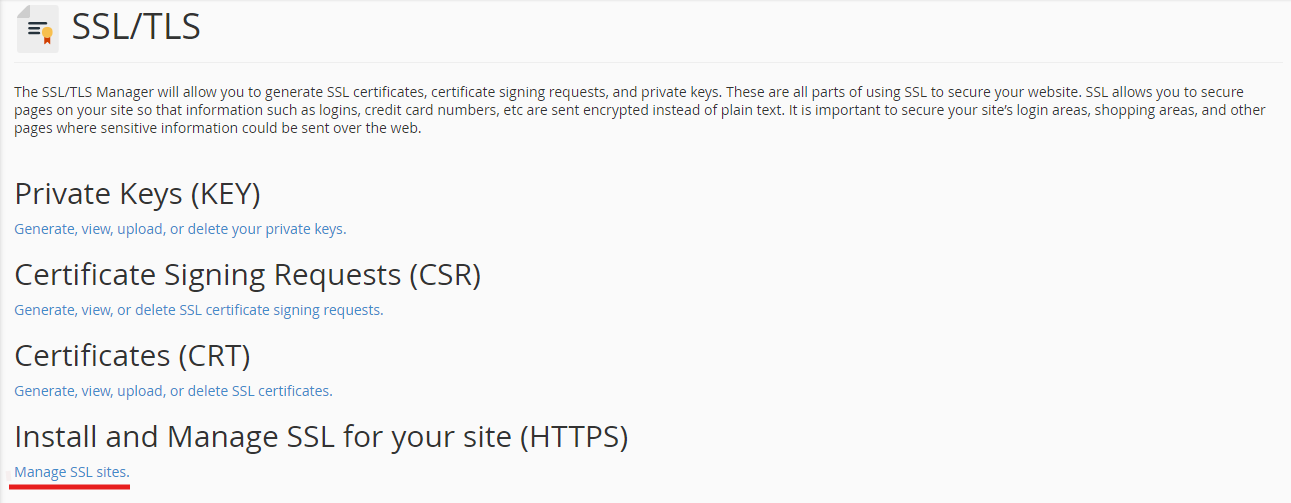
- Locate and click on SSL/TLS Manager in the Security section. You can also type SSL in the search box on the cPanel.

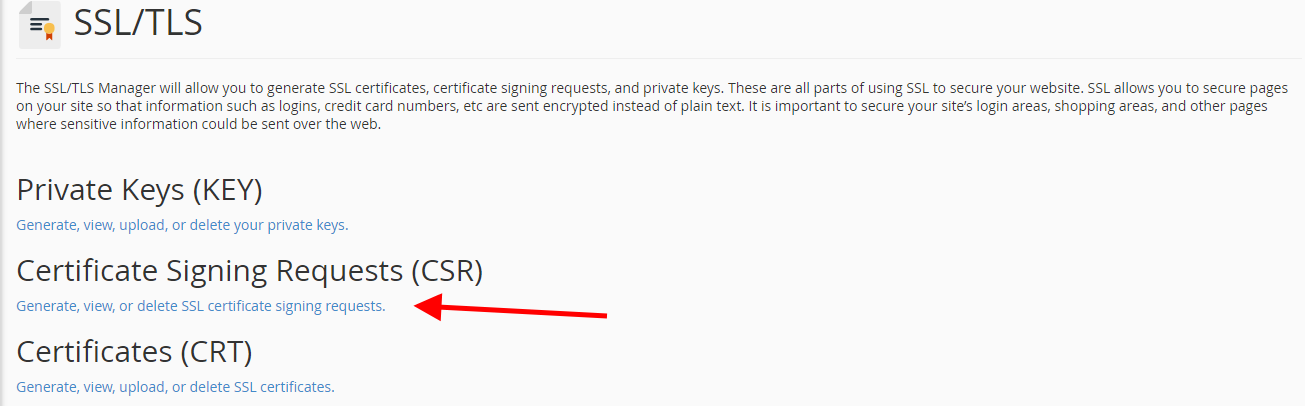
- Click on the Generate, view, upload, or delete SSL certificate signing request link under Certificate Signing Requests(CSR).
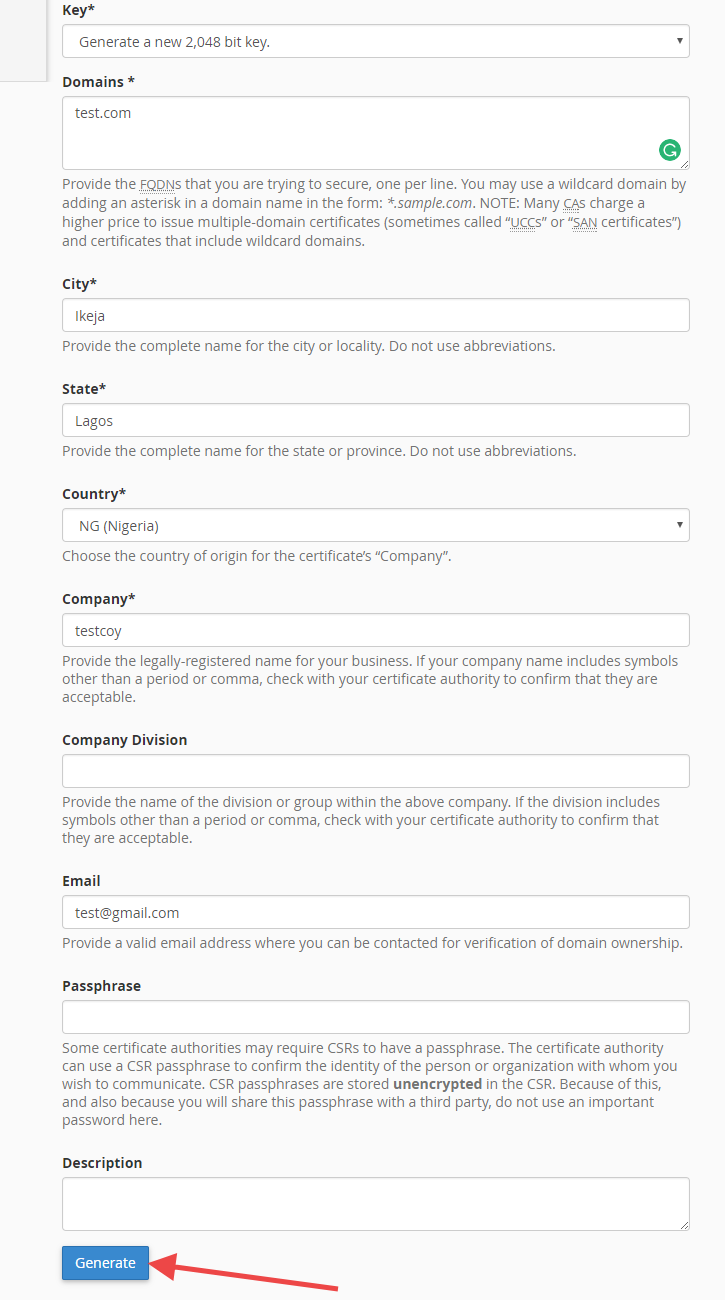
- Fill the form that is displayed when after clicking the link. After filling the form, click on the Generate button
After clicking the button, a CSR code will be generated.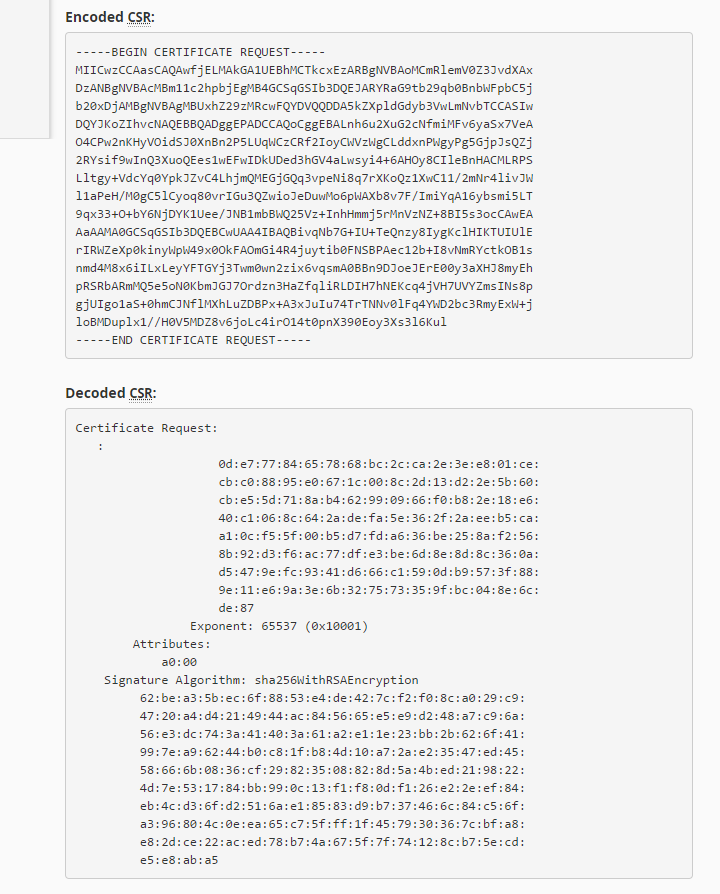
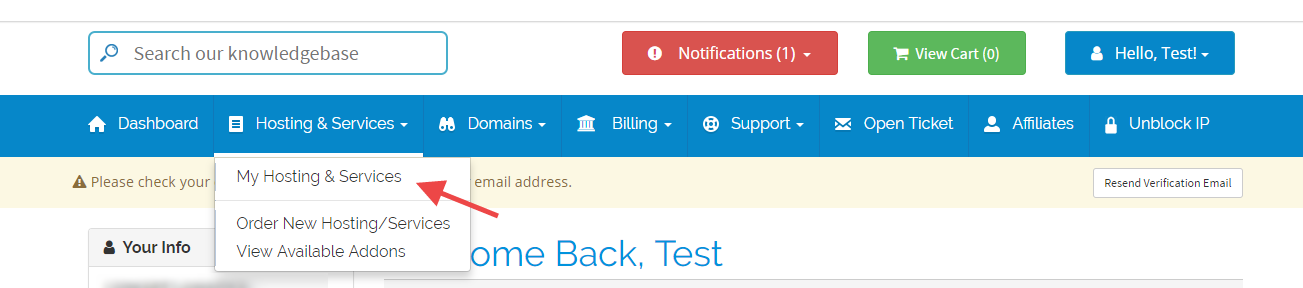
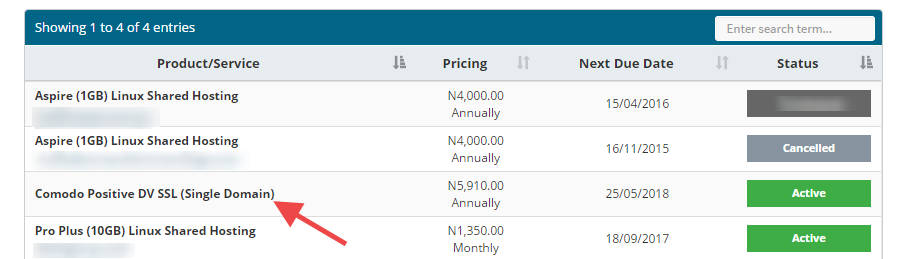
- Login to your client area on Whogohost. Click on Hosting & Services -> My hosting & Services.
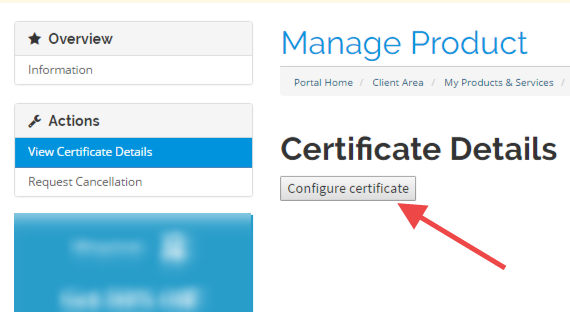
- Click on the SSL certificate order.
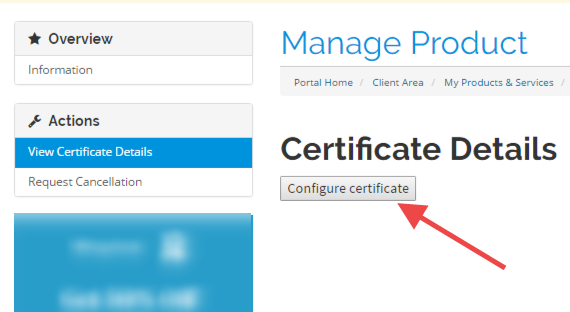
- Click on Configure Certificate
- Select cPanel/WHM under the Web Server Type. Paste the Encoded CSR Code. Also, fill the other information in the displayed form
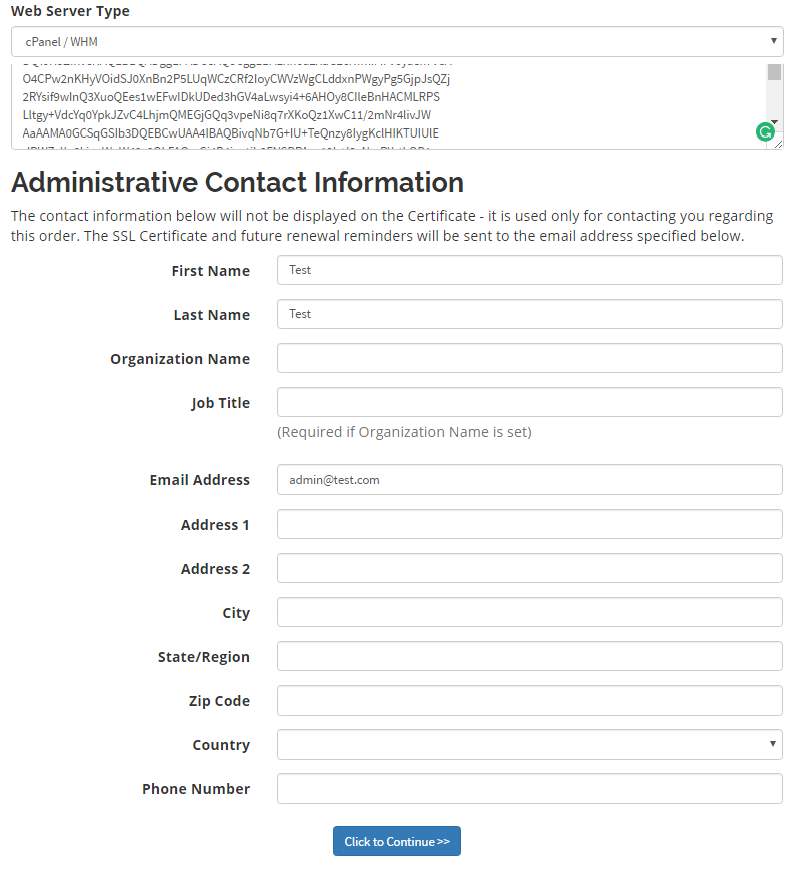
Note: The email used when filling the form must be an email you have access to, as it is where the Certificate approval email will be sent to.
Once you are done filling, Click on the Click to Continue button - Next, ou will need to approve the certificate. Select the email you will want to use for the approval.
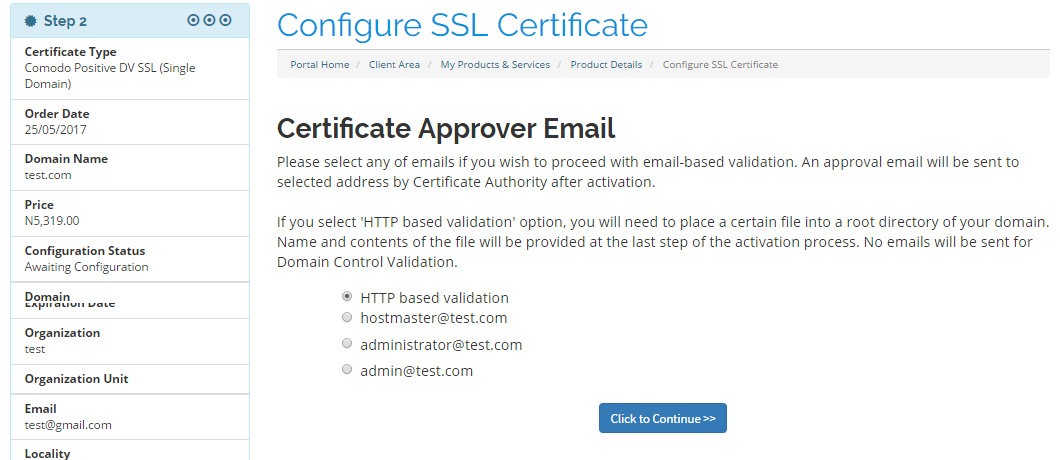
For email validation, select an email address to which the approval email will be sent. For security reasons, the approval email can only be sent to a generic email associated with the domain name (e.g., webmaster@, postmaster@, hostmaster@, administrator@, admin@, etc.) or to the registered Whois email address.
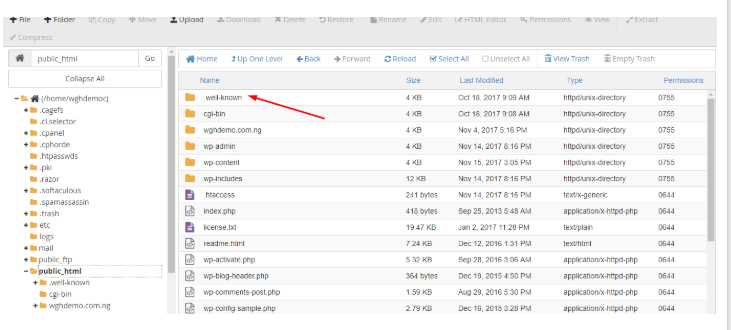
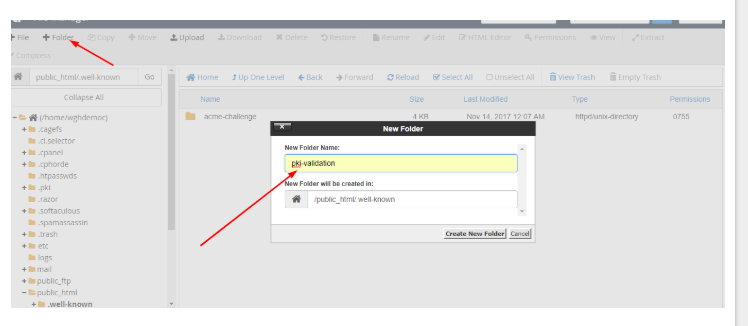
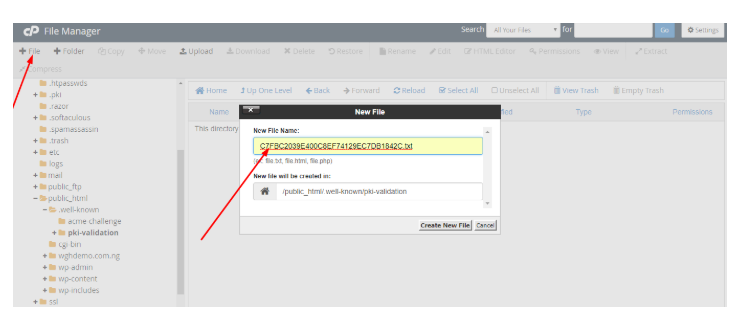
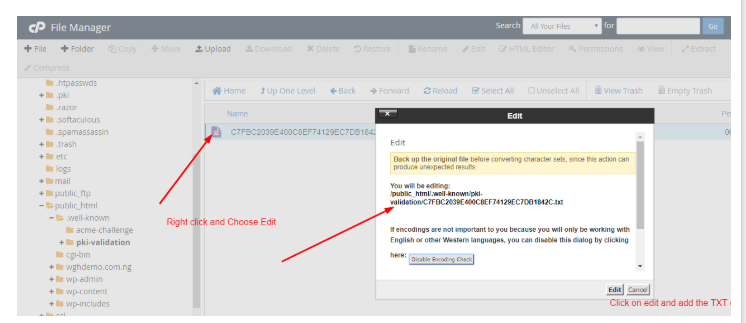
For HTTP-based validation, you will need to upload a certain text file into the root directory of your website to have the certificate issued. (public_html/.well-known/pki-validation/).
You'll then be able to download the certificate file in your account after the order is submitted to the Certificate Authority for activation. - Select the server type and fill out the details below.Ensure that the telephone starts with a country code E.g 234……
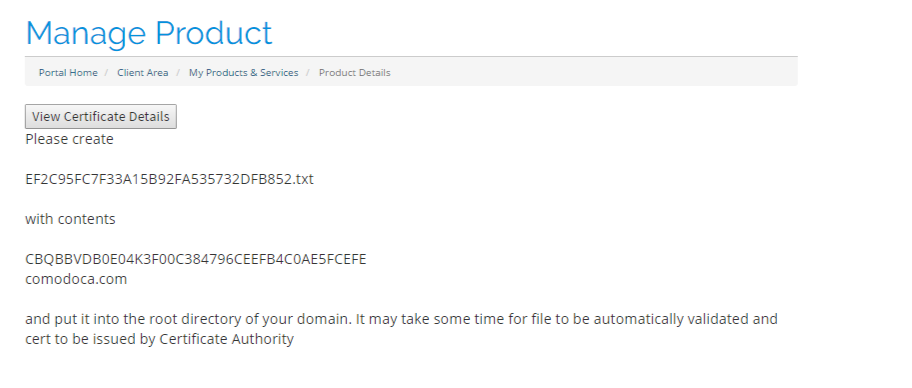
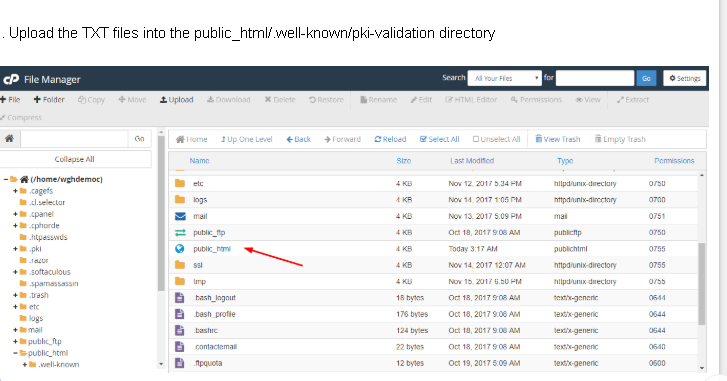
- Upload the TXT files into the public_html/.well-known/pki-validation directory.
- Copy the certificate code you received from the Certificate Authority including -----BEGIN CERTIFICATE----- and -----END CERTIFICATE----- and paste it into the 'Certificate: (CRT)' field on the next page. The certificate files can be opened with the help of text editor (e.g Notepad) on your computer.
Note: The certificate code can be found in the file *yourdomain*.crt which is usually sent to you in the email from the Certificate Authority.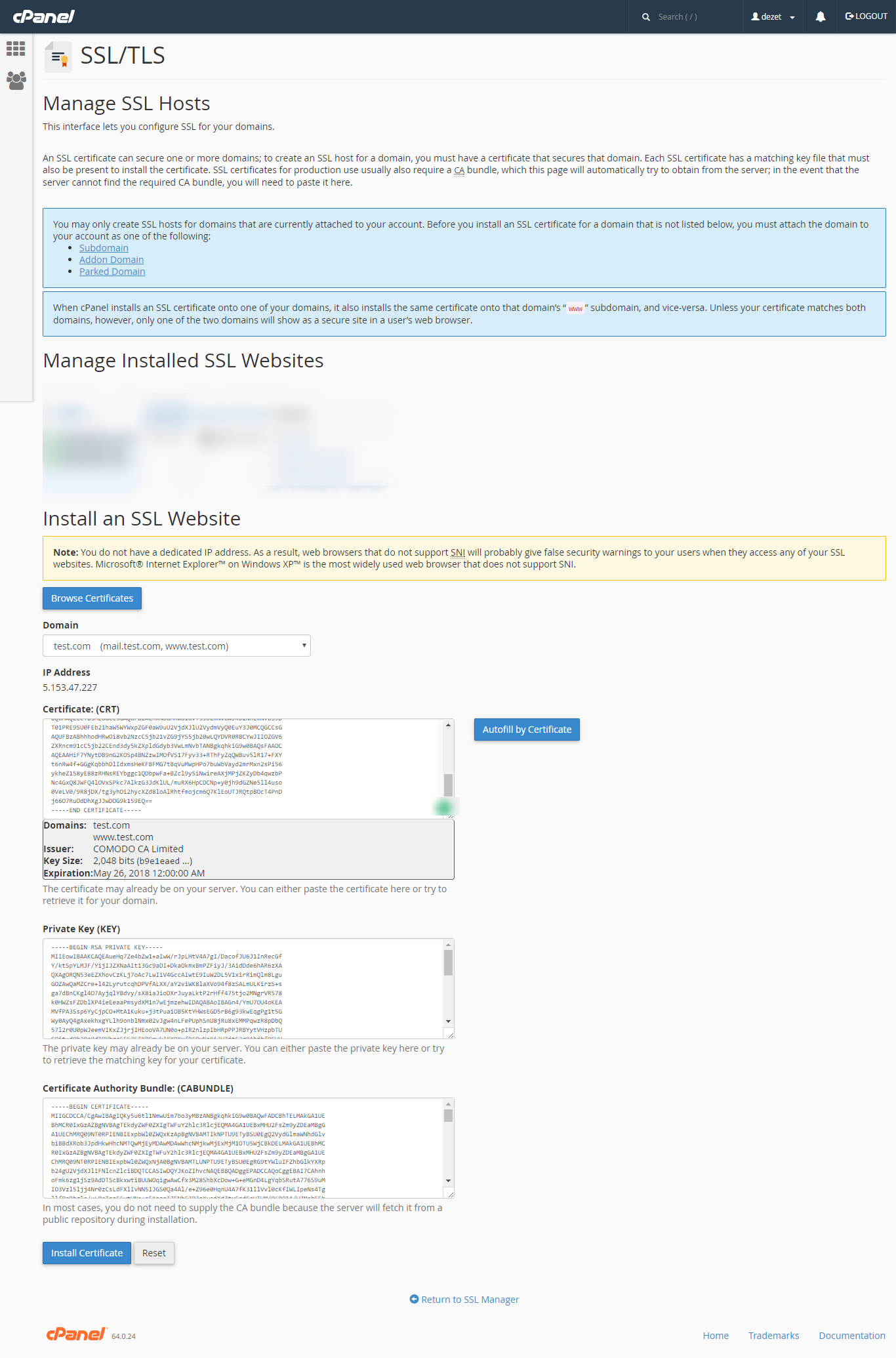
- Click on the 'Install Certificate' button.
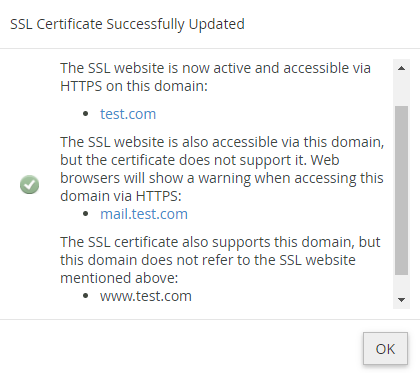
Congratulations! The certificate is now installed on the server for your site.
